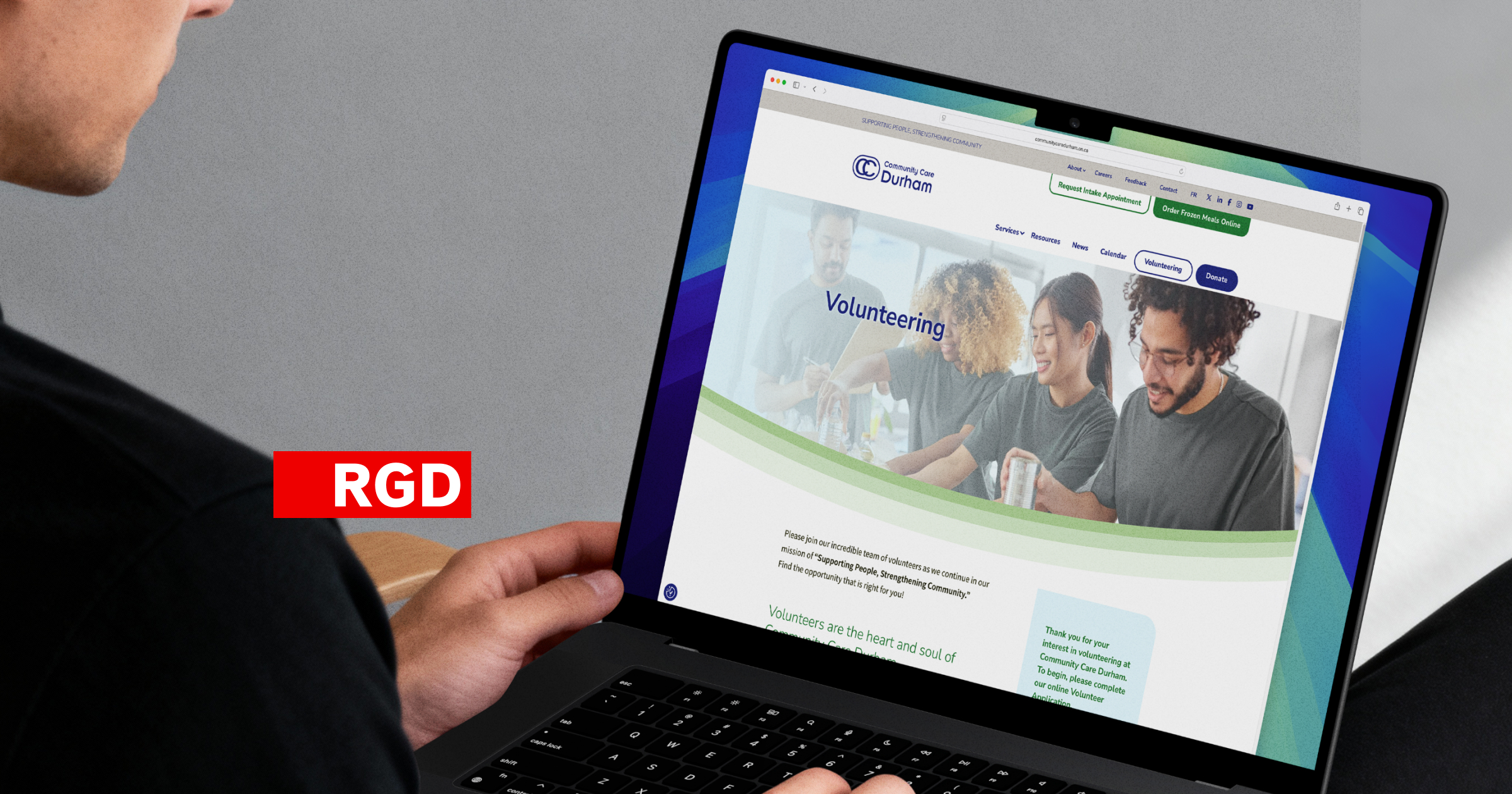
One of the last stages, and most crucial stages of launching a successful website is the final testing process. This is where you simulate using your site as someone who has no idea what they’re doing, using different devices, software and in different situations.
Tunnel vision is a huge problem in the industry and many times developers overlook common issues because they’re focused on something else. You may want to send your website link to people outside of the project to see how they use the website, and help identify issues and bottlenecks that you may not notice. Gaining feedback from a wide demographic of users can be extremely helpful in the final stages of a website. Using heatmaps and recording mouse movement can also give you insight into how the site is being used. You may find for example an image looks too much like a link, and users are constantly clicking on it trying to gain access to information.
For accessibility testing we take a couple of other things into consideration. Such as double checking color contrast, descriptive alt tags on images, and checking keyboard navigation. Here are some tools and a handy checklist to help you through this final stage.
DISCLAIMER: This is a best practice checklist. It does not guarantee that your site is 100% accessible. In fact, it’s highly unlikely that a modern engaging site can be 100% accessible and you should be wary of companies and services that make such promises. However, this list will help you address a wide range of disability conditions and improve the overall experience for everyone who uses your site. Under each item is a dropdown with more information and references to help you better understand the what and why behind the guideline.
Controls are interactive elements (links, buttons, etc.) that when clicked perform an action.
Why?
Any link that does not have the ‘href’ attribute inside the ‘a’ element will not be properly exposed to assistive technology, (for example a link that uses an ‘onclick’ event in place of an ‘href’ attribute). If using the a href is not an option, use the role=”link” attribute on the ‘a’ element.
Reference:
https://developer.mozilla.org/en-US/docs/Web/Accessibility/ARIA/ARIA_Techniques/Using_the_link_role
Why?
Colour alone is not sufficient to indicate the presence of a link. Visual cues like underlines are a universally effective way to communicate the presence of linked content.
Reference:
https://webaim.org/blog/wcag-2-0-and-link-colors/
What is a focus state?
This is a visual cue that represents that the item had received ‘focus’ or is selected on screen. This is particularly important with users who use assistive technology or navigate via keyboard only.
Why?
Visual focus styles help assistive technology users determine which interactive element is currently focused.
Reference:
https://www.w3.org/TR/UNDERSTANDING-WCAG20/navigation-mechanisms-focus-visible.html
Why?
Using html elements other than a button element can be tricky for assistive technology. They must have extra code added to ensure that the element is properly accessible. If you have used something other than a button element, ensure that tests show that this is accessible.
Reference:
https://developer.paciellogroup.com/blog/2011/04/html5-accessibility-chops-just-use-a-button/
What is it?
Skip links or bypass blocks are a menu of links that appear at/near the top of the screen when a user starts using the tab key or other assistive device to navigate the website.
Why?
Skip links allow the assistive technology user to skip repeated areas like headers, main navigation, etc, and skip directly to the area they would like to go.
Reference:
https://www.w3.org/TR/UNDERSTANDING-WCAG20/navigation-mechanisms-skip.html
Why?
Assistive technology users can become disoriented when links don’t act as they expect them to. Identifying the action of a link helps assistive technology users better understand how to use and navigate the site.
Reference:
https://www.w3.org/TR/WCAG20-TECHS/G201.html
https://knowbility.org/blog/2019/links-opening-new-windows-no-warning/
Why?
Buttons and links that use the term “click here” or “read more” are not descriptive enough for assistive technology users. Using more descriptive terms such as “Download PDF file” or “Open the full article” give the user a better understanding of what the link will do.
Reference:
https://www.w3.org/TR/UNDERSTANDING-WCAG20/content-structure-separation-programmatic.html
Form areas can be some of the least accessible areas of your website. Here are the major issues you need to address:
Why?
Labels describe the purpose of the field, and associating them using the ‘for’/’id’ attributes ensures the assistive technology can refer to the correct label when presenting the form field. This pairing guarantees the highest level of browser/assistive technology support.
Reference:
https://www.w3.org/TR/UNDERSTANDING-WCAG20/consistent-behavior-unpredictable-change.html
https://www.w3.org/WAI/tutorials/forms/labels/
Why?
‘Fieldset’ elements group related content to make forms easier to understand. ‘Legend’ element acts as a heading to identify the group.
Why?
There are a couple of ways to indicate that a field is required. The ‘*’ alone is not an optimal way as most screen readers will just read this as “star”. Changing the field label to “Field Name (required):” or using an image for the ‘*’ and placing an alt=”required field” on the image are two of the most common ways to do this.
Reference:
https://medium.com/@lsnrae/accessible-form-validation-9fa637ddb0fc
Why?
Test your form to ensure that on submit with error, any field errors are read out to users so that visually impared persons know where the issues are.
Reference:
https://www.w3.org/TR/UNDERSTANDING-WCAG20/minimize-error-identified.html
https://medium.com/@lsnrae/accessible-form-validation-9fa637ddb0fc
Why?
Visually impared persons will need more than colour to identify these states. Using color, images, and text ensures that the message will be communicated to all.
Reference:
https://www.w3.org/TR/UNDERSTANDING-WCAG20/visual-audio-contrast-without-color.html
These may seem very basic, but your global code plays a huge part in the ability for assistive devices to access your website.
Why?
Having error free HTML in your website will load faster and help to give users a consistent experience across all browsers and assistive technologies.
Reference:
https://validator.w3.org/
Why?
Setting the ‘lang’ (or language) attribute sets the language on screen readers. This setting sets the proper word pronunciation and braille language characters correctly.
Reference:
https://www.w3.org/TR/2016/NOTE-WCAG20-TECHS-20161007/H57
Why?
Ensure that the “title” element, contained in the document’s “head” element is unique and descriptive. The title should clearly announce the basic theme or content of the page. This is also an important place for your SEO. Ensure that it matches and supports the content of the site.
Reference:
https://www.w3.org/TR/UNDERSTANDING-WCAG20/navigation-mechanisms-title.html
Why?
It is essential that users be allowed to zoom in or out of a site to customize their view to their specific vision needs. You should never disable this feature, even for app-like sites.
Reference:
https://www.w3.org/TR/UNDERSTANDING-WCAG20/visual-audio-contrast-scale.html
Why?
HTML5 landmark elements such as <nav> for navigation areas and <main> for the primary content area communicate the layout and allow the user quick access to these regions. You can also use ARIA landmarks to identify page regions and enhance semantics.
Reference:
https://www.w3.org/TR/UNDERSTANDING-WCAG20/ensure-compat-rsv.html
https://www.w3.org/WAI/tutorials/page-structure/labels/
Why?
HTML 5 introduced an autofocus attribute for webform controls. The autofocus attribute sets focus on the given field as soon as the page loads. Doing this allows the user to begin typing immediately. But for anyone that uses an assistive device, autofocus can dump them into a form with little to no context.
Reference:
https://www.w3.org/TR/UNDERSTANDING-WCAG20/navigation-mechanisms-focus-order.html
https://medium.com/@gavyn/til-autofocus-inputs-are-an-accessibility-problem-32ced60c3109
Why?
If you must have session timeouts, you need to let the user know the timeout exists ahead of time. They also require significant notice before the timer runs out.
Reference:
https://www.w3.org/TR/UNDERSTANDING-WCAG20/time-limits-required-behaviors.html
Why?
The title attribute is problematic for:
Reference:
https://html.spec.whatwg.org/multipage/dom.html#the-title-attribute
Many assistive users navigate webpages using headings, so it’s important that headings are used appropriately.
Why?
Organizing a page using heading structure (<h#>) helps users get a sense of the page’s organization. Screen readers can allow a users to navigate a page according to it’s headings. They can listen to a list of all headings and skip to a desired heading to begin reading at that point. Heading elements should not be used for purely visual design.
Reference:
https://www.w3.org/TR/UNDERSTANDING-WCAG20/navigation-mechanisms-descriptive.html
Why?
The <h1> element should be used to communicate the main title of the page. The <h1> element should not be used for a heading that doesn’t change from page to page (for example the site name).
Reference:
https://www.w3.org/TR/UNDERSTANDING-WCAG20/navigation-mechanisms-descriptive.html
Why?
Do not skip heading levels. (eg. from <h2> to <h6>). The order of heading elements should descend incrementally. This can cause confusion for assistive technology users.
Why?
Use of bold instead of a heading tag will cause screen readers to ignore the text when reading out headings.
Reference:
https://www.w3.org/TR/UNDERSTANDING-WCAG20/navigation-mechanisms-descriptive.html
Lists are an important part of webpages but in order to be understood by assistive devices they need to be properly structured.
Why?
Proper structure around lists allows assistive technology users to know that the section of content is related.
Reference:
https://www.w3.org/TR/UNDERSTANDING-WCAG20/content-structure-separation-programmatic.html
Structured data that helps people understand the relationship between different types of information.
Why?
The structure of a table helps assistive technology users understand the relationship of all the information.
Reference:
https://www.w3.org/WAI/tutorials/tables/
Why?
Using proper semantic structure for tables helps create a logical relationship in grids for the assistive technology user. For tables that have two headers or irregular headers see the reference link below for more information on markup techniques.
Reference:
https://www.w3.org/WAI/tutorials/tables/
Why?
The caption element identifies the overall topic of the table.
Reference:
https://www.w3.org/WAI/tutorials/tables/caption-summary/
Why?
Strobing or flashing more than 3 times per second can cause seizures or migraines. It can also be distracting and disruptive for persons with cognitive concerns.
Reference:
https://www.w3.org/TR/UNDERSTANDING-WCAG20/seizure-does-not-violate.html
Why?
Background video or animation can be distracting, especially if the content is placed over it.
Reference:
https://www.w3.org/TR/UNDERSTANDING-WCAG20/time-limits-pause.html
Why?
Animation can be distracting or disruptive to certain persons. If “reduce motion” setting is activated within the browser, ensure that the site animation is either stopped, removed, or if it is needed to convey meaning, the animation speed is slowed significantly.
Reference:
https://www.w3.org/WAI/WCAG21/Understanding/animation-from-interactions.html
Images are the cornerstone of any good website – and ensuring that the images are written in a way that all users can understand their context is important.
What is it?
An “alt” or alternative text attribute is text added programmatically that describes the image.
Why?
This attribute has two main functions. Assistive technology uses this text to communicate to the user what is on screen. As well, this is a great attribute for adding SEO keywords. If you are using this as a keyword area, ensure that the text is still descriptive of the image and does not interfere with the website experience if using a screen reader. (for example, if the image is of a house for sale, avoid spammy attempts at keyword stuffing like listing words such as; “sale, house, family”. Instead work them into the description “House for sale, perfect for a family”). Decorative images do need an alt tag, but the description can be empty.
Reference:
https://www.w3.org/TR/UNDERSTANDING-WCAG20/text-equiv-all.html
https://www.w3.org/WAI/tutorials/images/
https://www.w3.org/WAI/tutorials/images/decorative/
https://moz.com/learn/seo/alt-text
What are they?
Complex images are images such as charts, graphs, infographics that contain a lot of text in image form and cannot be read out by a screen reader. Complex images can also be difficult to understand by people with learning disabilities or low vision.
Why?
Most screen readers cut off alt text around 125 characters. This means for complex images we need to link a page or document that fully explains the image textually. Use the longdesc=”” attribute to specify a hyperlink to a detailed description of an image.
Reference:
https://www.w3.org/WAI/tutorials/images/complex/
https://moz.com/learn/seo/alt-text
Why?
Text as an image cannot be read out to users. If you must use an image of text – for example an image of a logo – ensure that the alt text mirrors the text within the image.
With video and other interactive media becoming more and more prevalent, we need to ensure that it’s fully accessible.
Why?
Unexpected video or audio can be distracting, disruptive, especially for certain kinds of cognitive disabilities. Certain kinds of auto playing video and animation can also trigger seizures and migraines.
Reference:
https://www.w3.org/TR/UNDERSTANDING-WCAG20/visual-audio-contrast-dis-audio.html
Why?
Proper labeling of audio and video controls allow assistive devices to properly convey functionality to the user.
Why?
If you have provided a global pause function, ensure that the space bar does not cause media playback. Also ensure that this global function does not interfere with the space key’s ability to scroll the page when not focusing on a form control.
Check that you are able to control play, stop, pause, etc. all by use of your keyboard. Ensure that the user cannot get ‘trapped’ within the interactive item.
Why?
There are actually quite a few good reasons to always have closed captioning on videos.
Many users will watch videos in office, with the sound off.
Deaf users are given the ability to follow and understand the video.
Captions add another dimension to SEO. The text helps search engines categorize and add your videos to search results – and videos with closed captioning rank higher in search results.
Reference:
https://www.w3.org/TR/UNDERSTANDING-WCAG20/media-equiv-captions.html
Why?
Avoid flashing items 3 times per second or more. Strobing and flashing animations may trigger seizures.
Reference:
https://www.w3.org/TR/UNDERSTANDING-WCAG20/seizure-does-not-violate.html
Why?
Just like video, there is more than one reason to add transcript links to your audio clips.
Reference:
https://www.w3.org/TR/UNDERSTANDING-WCAG20/media-equiv-av-only-alt.html
https://moz.com/blog/transcribe-all-the-things-benefits-strategies-more
An SVG is a Scalable Vector Graphic. In more simple terms this is an image that can grow or shrink on your website without losing any quality.
Why?
VoiceOver on macOS and iOS will not correctly convey the element as an image if role=”img” has not been added to the SVG. This code also stops browsers from traversing to the SVG.
If your SVG is not interactive but is placed inside an interactive item or other focusable element, use the focusable=”false” attribute to ensure that the SVG does not inherit focusability.
Reference:
https://css-tricks.com/accessible-svgs/
Why?
SVG images don’t have alt text, but they do have accessible alternatives. The title tag provides an accessible title for the element that contains it. The <desc> or description tag provides a longer more complete description of the element.
For decorative SVG’s adding aria-hidden=”true” is the equivalent to an empty image ‘alt’ tag
It’s important to note that SVG titles and descriptions will need to have unique id’s added and then referenced by aria-labelledby=”” on the SVG.
Reference:
https://www.w3.org/TR/2000/NOTE-SVG-access-20000807/#Equivalent
https://css-tricks.com/accessible-svgs/
Text is the main reason anyone comes to your site! Ensuring it’s easy to read both visually and intellectually is priority.
Why?
When your content is for a general audience, it’s important to keep your content at an 8th Grade reading level. Any advanced terms or language should be linked to an explanation or have a quick explanation in parenthesis.
Reference:
https://www.w3.org/TR/UNDERSTANDING-WCAG20/visual-audio-contrast-without-color.html
https://datayze.com/readability-analyzer.php
Why?
While this doesn’t affect anyone using a screen reader, some users will find that center aligned text and justified text can be difficult to read.
Reference:
https://www.w3.org/TR/UNDERSTANDING-WCAG20/content-structure-separation-programmatic.html
8% of men and 0.5% of women have color blindness. In 2017 the World Health Organization estimated that 217 million people worldwide live with visual problems and impairments. Proper contrast will allow a larger margin of users to interpret and use your site.
Why?
Smaller text needs more contrast in order for users with minor visual impairments or color blindness to be able to read. Thinner fonts may need even more contrast. Consider using different applications that simulate visual impairments to test your site.
Reference:
https://www.w3.org/TR/UNDERSTANDING-WCAG20/visual-audio-contrast-contrast.html
https://developer.paciellogroup.com/resources/contrastanalyser/
http://colorsafe.co/
Why?
While larger text can have less contrast then smaller text because of its size, if you are using a thin version of the font, you may still want to stick with 4.5:1 contrast. Thick or bold heading fonts with the 3:1 contrast will be highly readable.
Reference:
https://www.w3.org/TR/UNDERSTANDING-WCAG20/visual-audio-contrast-contrast.html
https://developer.paciellogroup.com/resources/contrastanalyser/
http://colorsafe.co/
Why?
Even though icons are thought of being used mostly for decoration, they still add information to the visual interpretation of the site. A contrast of 3.0:1 will be sufficient for most icons, but if you are using an icon or graphic with thin lines, opt for an even deeper contrast to enhance readability.
Reference:
https://www.w3.org/WAI/WCAG21/Understanding/non-text-contrast.html
https://developer.paciellogroup.com/resources/contrastanalyser/
Why?
It can be very frustrating to users if they cannot see the edges of the input form fields. Users with low vision using a mouse or touchscreen are unsure where to click/touch. Increasing the border contrast of these areas helps avoid unwanted selections and confusion.
Reference:
https://www.w3.org/WAI/WCAG21/Understanding/non-text-contrast.html
https://developer.paciellogroup.com/resources/contrastanalyser/
Why?
If text is on top of an image or video, is the text still legible? You may need to darken the area behind the text with a semi-transparent color, or darken / thicken the text. If this area is responsive, test it on multiple devices sizes to ensure that wherever the text lands over the image it is still legible.
Reference:
https://www.w3.org/TR/UNDERSTANDING-WCAG20/visual-audio-contrast-contrast.html
Why?
Some people may highlight sections of your site. If your text is highlighted or selected, is the contrast still sufficient to read?
Reference:
https://www.w3.org/TR/UNDERSTANDING-WCAG20/visual-audio-contrast-contrast.html
A focus indicator (link to past blog) is the visual cue that highlights what is currently focused (or selected) onscreen.
Why?
A focus state allows for a visual cue so that a person navigating with a keyboard, switch or screen reader can see where they currently are on a page. All browsers have a focus state coded into them. Turning these off might make a website look cleaner, but users who use keyboard navigation or assistive devices then have no idea where they are on the site.
Reference:
https://www.w3.org/TR/UNDERSTANDING-WCAG20/navigation-mechanisms-focus-visible.html
Why?
The focus order should match the visual layout of the page so that it’s easy to navigate using a keyboard or assistive technology. Can a person navigating with a keyboard or screen reader move around the page in a predictable way? If for example – using the tab key – to navigate causes the user to skip from top to bottom and then back up again, it will be confusing.
Reference:
https://www.w3.org/TR/UNDERSTANDING-WCAG20/content-structure-separation-sequence.html
https://www.w3.org/TR/UNDERSTANDING-WCAG20/navigation-mechanisms-focus-order.html
Why?
At times an element may receive focus that is invisible – which is confusing to assistive technology users. You should remove the ability to focus on an element that is not meant to be discoverable (ie: inactive dropdown menus, off screen navigations or modals). Use tabindex=”-1” to disable focus.
Reference:
https://www.w3.org/TR/UNDERSTANDING-WCAG20/navigation-mechanisms-focus-order.html
Ensure that you test in all major browsers, Chrome, Internet Explorer, Edge, Safari, and Firefox. Check that the layout and interactive elements (buttons, forms etc.) look and function consistently across these browsers.
Why?
This testing will allow you to check to make sure a person using keyboard-only or other assistive technology can effectively navigate your website.
Reference:
https://bytes.mybrotherdarryl.com/accessible-navigation/
Why?
Inverting the colors allow you to make sure that your site is still readable with a serious visual impairment.
References:
Chrome Extension
FireFox Extension
Apple Devices
Why?
This allows you to ensure no interactive items use color only to mark them. Carefully check that you are able to recognize buttons and other items without color.
Why?
Turn images off and make sure that the Alternative text (Alt) on images will communicate what the images are to blind users.
Resources:
Disable Images in Chrome
Disable Images in IE
Disable Images in Firefox
Disable Images in Safari
Why?
Check the site in high contrast mode to ensure that someone with low vision is still able to read all sections of your site. Pay particular attention to any text on top of images.
Resources:
Chrome Extensions
Firefox
Apple Devices
Why?
Expect that users WILL zoom into your site. The site should be readable and functional when zoomed to 200%. Test to see if content overlaps or if any content becomes unreadable.
Reference:
https://www.w3.org/TR/UNDERSTANDING-WCAG20/visual-audio-contrast-scale.html
Why?
Check your site on different device sizes, browsers and at different zoom levels to ensure that adequate spacing is still maintained between elements.
Reference:
https://www.w3.org/TR/UNDERSTANDING-WCAG20/content-structure-separation-understanding.html
Why?
You cannot control what orientation or device your site will be used on. You need to ensure that your site design stays consistent and readable on any size, on any device.
Reference:
https://www.w3.org/WAI/WCAG21/Understanding/orientation.html
Why?
Horizontal scrolling can be difficult for some users. Unless this is a specific and explained function of the site, do not use horizontal scrolling.
Reference:
https://www.w3.org/WAI/WCAG21/Understanding/reflow.html
Why?
Buttons that don’t trigger easily can be frustrating and confusing to some users. Ensure that items like hamburger menus, social icons, and any other interactive item can be easily triggered by a wide range of hand sizes or stylus devices.
Reference:
https://www.w3.org/WAI/WCAG21/Understanding/target-size.html
Why?
Anyone with large fingers or hand tremors could have a difficult time navigating or scrolling past clickable items that don’t have adequate spacing.
Reference:
https://uxmovement.com/mobile/optimal-size-and-spacing-for-mobile-buttons/
It’s good to remember that there may be very specific needs for new technology in the future that do not appear on this list. Therefore, it’s important to reference back to sources like the latest WCAG guidelines at https://www.w3.org. Below you’ll find a link to download a digital version of this checklist, both in long-form and in cheat sheet form to help you assess your current website’s accessibility compliance.
Sources:
https://a11yproject.com/checklist/
http://romeo.elsevier.com/accessibility_checklist/
https://webaim.org/standards/wcag/checklist
https://webaim.org/resources/evalquickref/
Color contrast Checker: https://webaim.org/resources/contrastchecker/
Color reliant Link contrast Checker: https://webaim.org/resources/linkcontrastchecker/
Web Accessibility Evaluation Tool: http://wave.webaim.org/
Web Developer Extension (to disable images in Chrome, Firefox, Opera): https://chrispederick.com/work/web-developer/